¶ Quick Start Guide: TI-84 AI Calculator
Welcome to The Retardation Foundation. This guide aims to make your experience as easy and quick as possible.
¶ First step: Powering your calculator
Your calculator does not come with batteries included! You will need to buy four triple-A (AAA) batteries to operate it.
Although normally the TI-84 does not take much power, AI operations can be very power hungry. For convenience, we recommend high capacity rechargable cells, so your calculator can be ready whenever you need it.
- Recommended: High-Capacity Rechargeable AAA Batteries
¶ Step 2: Initializing
Now that your device is powered, we must load the AI module. Typically, you only need to repeat this once, as long as your calculator is powered adequately.
There's a few button sequences you must press to do so, do each once and in order:
[5] -> [STO>] -> [ALPHA] -> [C]
then
Press [ENTER]
This should just return the number 5. You can continue to the next step
Press [2nd] -> [0]
you should see a catalog of functions:

Now, press [ALPHA] -> [S]
do this twice until you jump to the "S" section:

and scroll down to "Send("
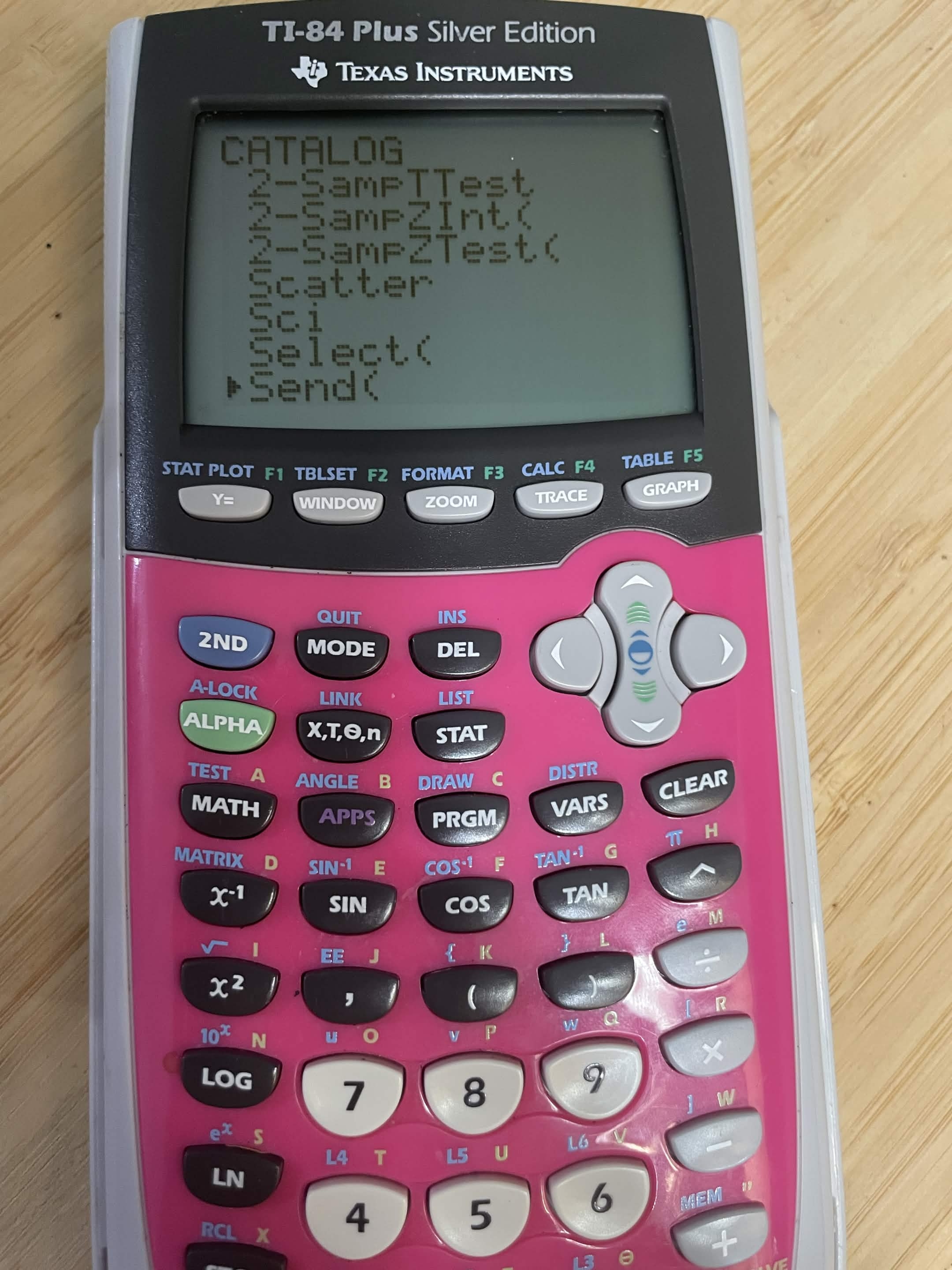
Press [ENTER]
now, press:
[ALPHA] -> [C] -> [ENTER]
The software will now be initialized.
Press the [PRGM] button to access the AI interface, you should see a program applet titled RETARD, scroll to it and press [ENTER].
Note: If the applet does not appear, repeat the steps above. If persistent issues occur, contact support via our discord server at [discord.retard.dev].
(you'll be able to access the AI on your calculator just by pressing [PRGM] from now on. If you are unable to, then repeat the steps above.)
¶ Step 3: Connecting to Wi-Fi
After you've initialized your calculator, you'll see the following screen:

Make sure "SETTINGS" is selected, and press enter. Your screen should look like this:

Go to "3: ADV SETTINGS", and press [ENTER].

Select "2: SETTING MODE".
Your calculator's screen should now say "PORTAL ACTIVE
SSID:
calculator".
This is normal. These next steps take place on your phone.
On your phone, you should see a Wi-Fi network titled "calculator". Connect to it
Go to your web browser, and type in
192.168.4.1.
Press enter.
Your phone should look something like this:
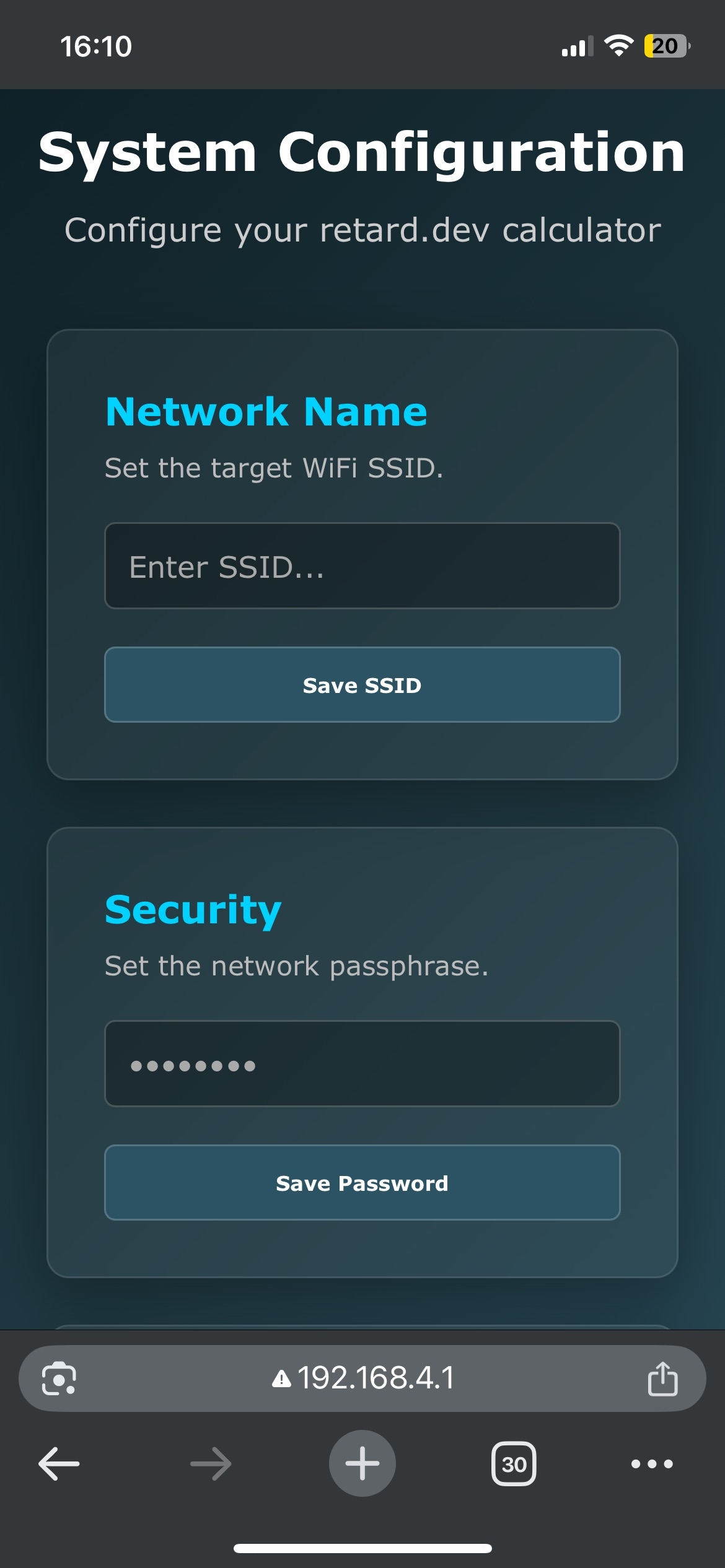
In the field titled SSID, type in your network name and click "Save SSID".
In the field titled Security, enter your password and click "Save Password".
Note- Don't make up your own network! This is the Wi-Fi you'll be connecting the calculator to!
Now you can choose to click "check for updates" if you would like to update your firmware. Remember, this is where you go when you need to update your firmware! Firmware is updated to provide bug fixes, additional features, and more.
¶ Final step- use your retard.dev AI calculator!
Press [PRGM] and open the RETARD applet. Go to SETTINGS, and click CONNECT.
Once it says "connected", press [ENTER].
Go to "GPT", and type in your prompt!
Hint: in order to speed up typing, you can press [2ND] -> [ALPHA] to enable alpha lock.